


I copy a ridiculous number of things while working. A useful link from a browser, a sentence from an article, a screenshot, or a file I need in another app can all end up in my clipboard within minutes. The problem starts when I need those things later. I used to treat every copy as a quick transaction: copy it, use it, move on. That worked until I started handling several things at once. I wanted something that could keep up without making my workflow more complicated. That’s when I came across Edge Drop, and it changed how I deal with copied content.
What is Edge Drop?
My copied stuff finally has a home
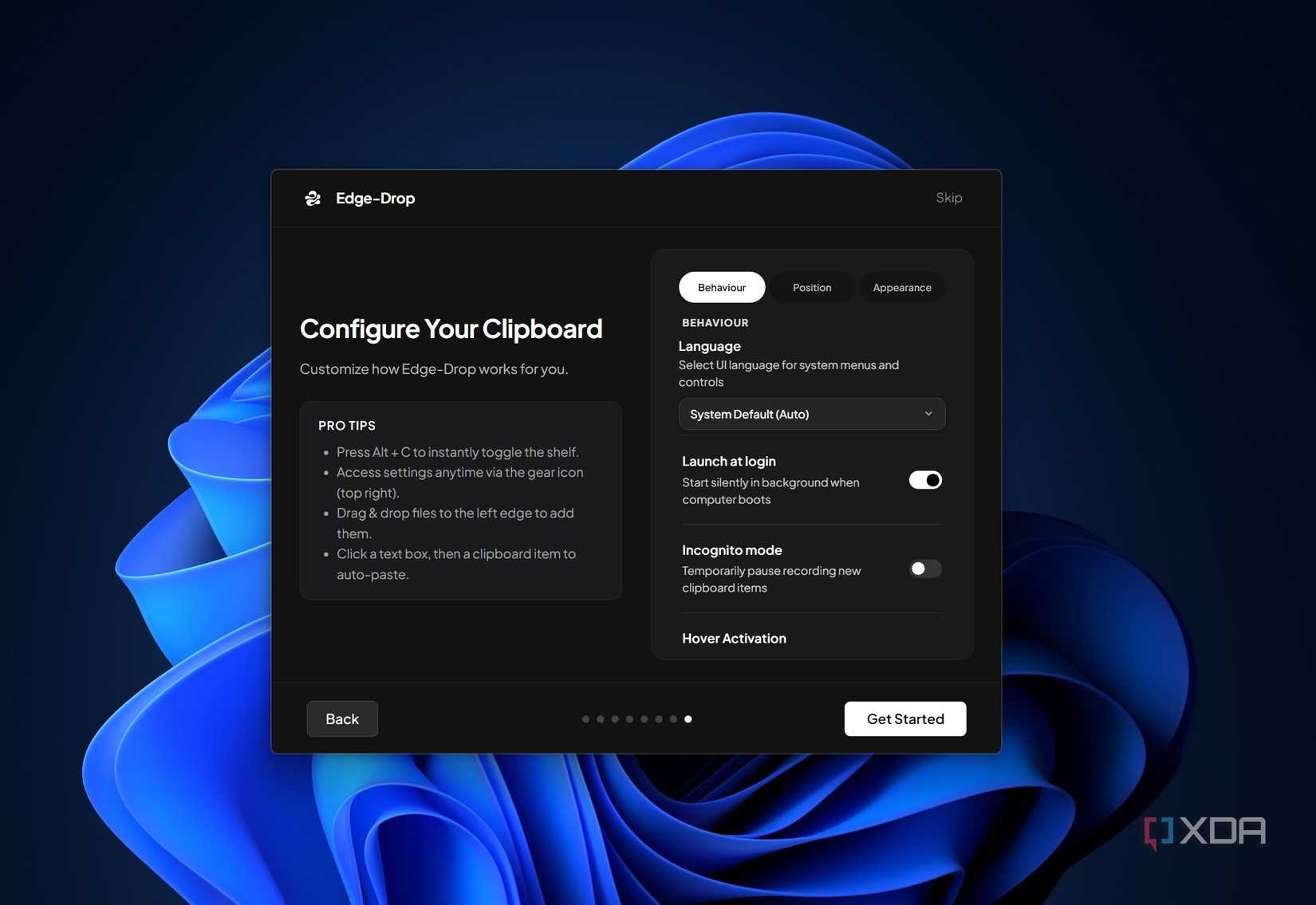
Edge Drop is a clipboard utility for Windows that gives me a dedicated place to keep the things I copy. After installing it, I get a slim bar along the edge of my display that opens into the clipboard panel when I move my mouse over it.
The app can handle different kinds of content, including text, links, images, screenshots, and files. This is useful because I don’t have to think of my clipboard as being limited to plain text. I can use it for the different types of content that come up during my workday. The panel also gives me a quick view of what I’ve collected, with controls for individual items. I can preview content, copy it again, pin something important, or remove it when I’m done.
It makes clipboard management effortless
I can copy things without immediately pasting them
The biggest change for me was that I no longer have to think about pasting something the moment I copy it. Edge Drop gives me more breathing room. I can copy something and simply leave it there while I continue working. If I’m researching a topic, for example, I can collect several useful links without opening each one immediately. The same applies to snippets of text I might want to reference later.
I particularly like this when I’m writing. I can gather information first and decide what I actually need afterward, instead of constantly interrupting my writing to paste every item. It sounds like a small change, but it removes a surprising amount of mental overhead. I’m no longer trying to remember which item I copied most recently or worrying that copying something new will replace something I still need. I can keep working and deal with those copied items when the right moment comes.
Related
This free and open-source self-hosted app syncs your clipboard across all of your devices
Say goodbye to the hassle of transferring text
Dragging files and links feels much better
Drag, drop, and get back to work
The part of Edge Drop I use most often is the drag-and-drop interaction. Once I have something sitting in the panel, I don’t have to copy it again or figure out where it is in my clipboard history. I can just grab it and move it where I need it.
This works particularly well with files and links. If I have a file ready to use in another folder, I can drag it out instead of opening multiple windows just to move it around. The same feels natural with links. I can pick one up and drop it into the window where I want to use it.
What I like is that the action feels visual. I can see the item I’m moving, grab it, and place it where it belongs. There is less guesswork involved, especially when I have several things to work with. It turns a basic clipboard action into something that feels much closer to moving an actual object around my desktop.
It feels modern
Built for everyday work
What surprised me after using Edge Drop was how naturally it fit into my daily work. I didn’t have to change the way I organize my desktop or build a new routine around the app. After a short while, using it started to feel normal.
I think that says a lot about good utility software. I don’t want another application demanding my attention throughout the day. I want something that solves a small problem and then lets me carry on with the work that actually matters.
Edge Drop also feels refreshingly focused. It doesn’t give me the impression that I need to explore every corner of the app to get value from it. I can understand what it’s for almost immediately and start using it without much of a learning curve.
My clipboard finally stopped getting in the way
I didn’t expect a small utility to change such a routine part of my work, but Edge Drop has earned a permanent spot on my PC. The real benefit isn’t having another app installed; it’s having fewer moments where I have to stop and think about what I just copied. If you regularly move information between apps, files, and projects, this is one of those tools that makes more sense the longer you use it. For me, that’s enough reason to keep it around.
Here
“`
