


When you’re in the market for an NVMe SSD, you might encounter varying prices, and sometimes, getting the cheapest drive sounds like a good deal. After all, you’re getting flash storage for your PC at the end of the day anyway, right?
Well, not quite. There are a couple of reasons why it’s always worth a second look into what you might be potentially losing out on by going for the cheapest drive on the shelf. Not every storage device is created the same way, and that’s true for M.2 NVMe SSDs as well. Depending on the type of NAND flash inside, two drives with the same capacity and sequential speeds may behave very differently once you fill them.
By going for the cheapest drives, which usually use QLC flash, you may be signing up for two drives in one, and the faster of which shrinks over time. Once it runs out, your experience can be quite sluggish, and the only fix would be to get another drive. Here’s what you want to know before you buy.
Your QLC drive runs a second, faster drive on the same chips
It writes everything there first, sorts it out later, and it can exhaust pretty quickly
When it comes to flash memory, QLC stands for Quad-Level Cell, which means each cell stores four bits of data. This is the densest NAND you can buy in the consumer market. The reason why density is relevant at all is that more bits per cell means fewer cells for the same capacity, and that means a lower price per terabyte. That’s why QLC-based SSDs are amongst the cheapest in the market.
The catch is that writing to a QLC cell is slow, and that is because the controller has to resolve one of sixteen voltage states to land four bits accurately, which is a process that takes time. What the drive effectively does to work around this is that it takes a slice of the same QLC cells and runs them in single-bit mode, storing just one bit each instead of four. In that mode, they can write faster and achieve a speed close to the speeds printed on the box.
What you’ll never see on the box, though, is how far the drive falls once the fast region runs out. In TechPowerUp’s test of the HPFX700, a $100 PCIe Gen 4 QLC drive, the difference was clear enough to change purchase decisions. The drive held close to 5GB/s at start, but behaved very differently when it started to fill up. The speed was sustained until 54GB was written, following which it dropped to 3.5GB/s. After 460GB out of 2TB had been written onto the drive, the performance collapsed to 130MB/s, a figure which the reviewers compared with a mechanical hard drive.
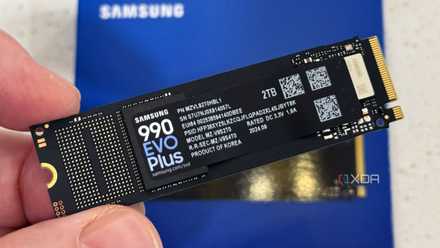
If you’ve heard of QLC, TLC, and MLC SSDs, these are the biggest differences between them.
The fast drive is hiding inside your QLC NAND
And every file you write eats into that cache
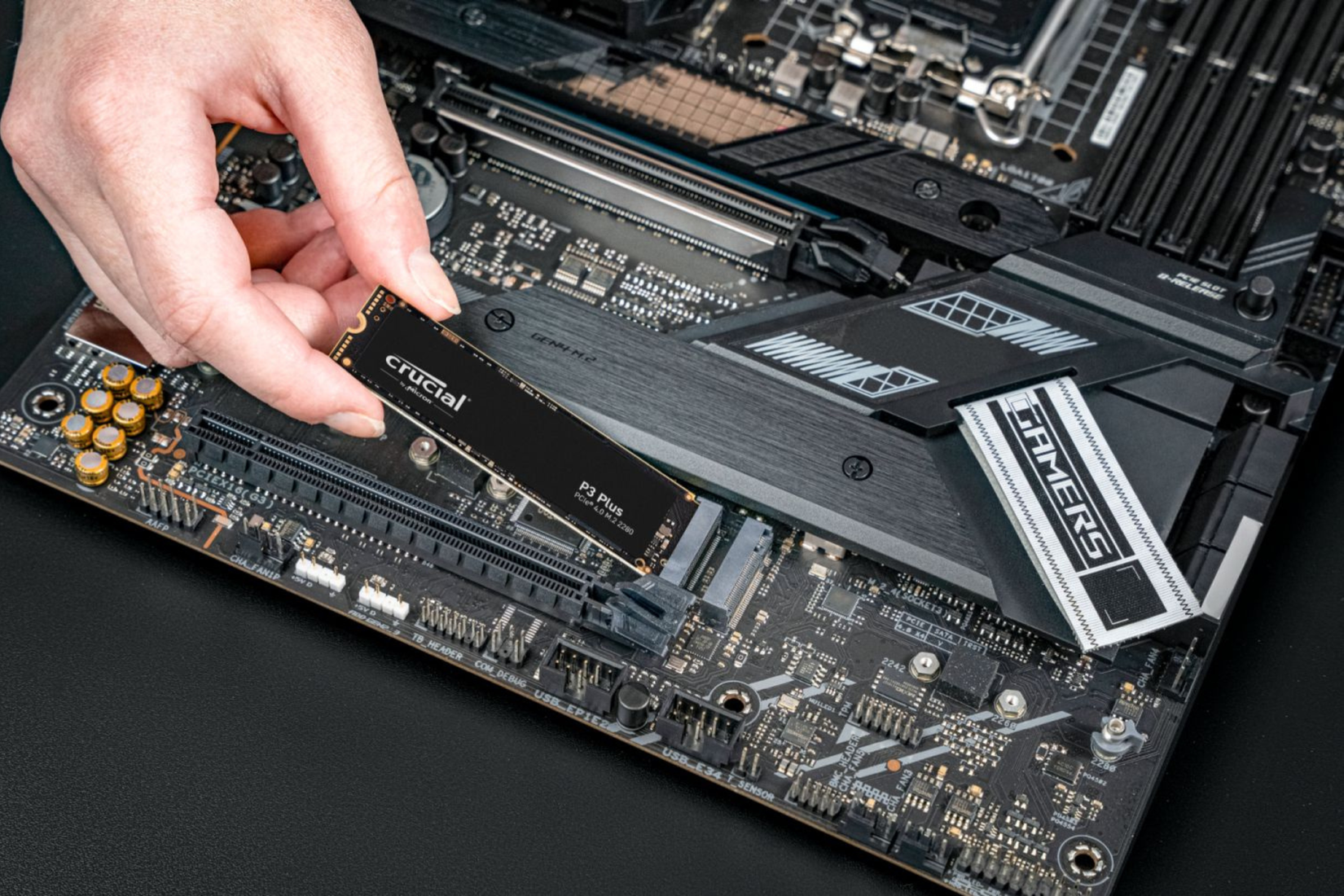
This means that everything you copy lands in this “fast” region first, and the drive folds it down into dense four-bit QLC later when it’s idle. Take the Intel 660p for example, which was the first QLC-based PCIe SSD. Intel’s product brief describes a dynamic architecture that changes how the drive’s cells are configured to balance capacity against performance, although it stops short of spelling the cost.
A single cell running in fast single-bit mode holds a quarter of what it does packed with four bits, so the fast region always borrows four times its size in capacity from the rest of the drive. So, in theory, a full terabyte of QLC could yield about 256GB of fast single-bit storage, though real drives typically reserve a smaller dynamic cache that shrinks as the drive fills.
The fast drive isn’t a separate chip that’s bolted beside the slow one, but rather, it’s carved out of the same QLC NAND, using whatever cells you haven’t filled yet. So, the fast region and your storage are drawing from the same pool, but every file you keep is a block that can no longer run in fast mode.
Tom’s Hardware observed exactly this in their testing of the 660p, noting that the fast region grows as you delete files and shrinks as you add them. On the 1TB model, that meant a generous 140GB of fast storage, but it fell to just 12GB once it was nearly full.
Some NVMe SSDs can perform slower than quality SATA SSDs in certain workloads
Don’t swear off QLC drives yet, though
They’re great for many workloads, but probably not the ones you have in mind
Now, I realize that everything I’ve said so far makes QLC sound like something you should avoid at all costs, and if you particularly dread your SSD’s speeds falling down to hard-drive speeds, that’s a reasonable concern and a valid reason to buy better. It is, however, an incomplete picture, and therefore worth understanding where it might actually make sense to spend less.
The first thing to keep in mind is that the performance drop-off only becomes a concern when you write more data in one go than the fast region could hold, for example, when a single continuous write exceeds the available pseudo-SLC cache. For most of what a PC does day to day, you never get close to that.
It’s also worth keeping in mind that QLC SSDs are built for read-heavy, capacity-first storage where writes are infrequent and latency isn’t the priority. A QLC drive is a fine home for a Steam library you install once and load for months, your media collection, or a bulk archive you barely touch. In all of those use-cases, the reads stay fast, and the capacity is cheap.
Always read about the SSD you’re about to buy
Despite what it might seem like, QLC isn’t automatically a bad buy, and given the current storage economy, you shouldn’t be disqualifying yourself out of a bargain if you get a chance. If your SSD mostly stores games, media, or other data that you rarely rewrite, the cheaper drive makes perfect sense, but if you’re constantly moving large files, editing video, or filling the drive to the brim more frequently, TLC is where you’d get the best value.
For more insights, you can visit the original article Here.
“`
