



Microsoft’s Copilot Gets a Better Placement in Office Applications
Summary
- You can now move the Copilot bubble to the Office ribbon to keep it out of the way.
- Docked Copilot now stays fixed to the side for the whole session instead of floating back.
- This shifts Copilot from intrusive centerpiece to optional tool – front for fans, tucked away for others.
Microsoft is in a little bit of a pickle. It spent the better part of 2025 getting excited over Copilot and rolling it out to every app it has. Now, in 2026, the company is clearing up the mess it made after people told Microsoft that they’d actually prefer not to have an AI in everything they use.
The company started by tweaking how Copilot functions in Paint and Notepad, bringing it more in line with what people would actually use instead of packing it full of features nobody wants. Now, Microsoft has announced that you can move the little Copilot bubble that appears when you’re using Office.
Microsoft lets you move the Copilot bubble to the Office ribbon
In case it was getting in your way
As spotted by Windows Latest, Microsoft has published an article titled “Shaping Copilot across Word, Excel, and PowerPoint.” In it, they explain what they’re doing with Copilot across the Office suite and what users can expect.
Right off the bat, the company explains what this update aims to tackle:
Updated entry points for Copilot
While we are seeing increased engagement with Copilot in Office apps with this update, we are also hearing the need for more control over how Copilot appears. While one of our goals is to evolve Copilot to be more adaptive and flexible over time, we are making some adjustments in the short term.
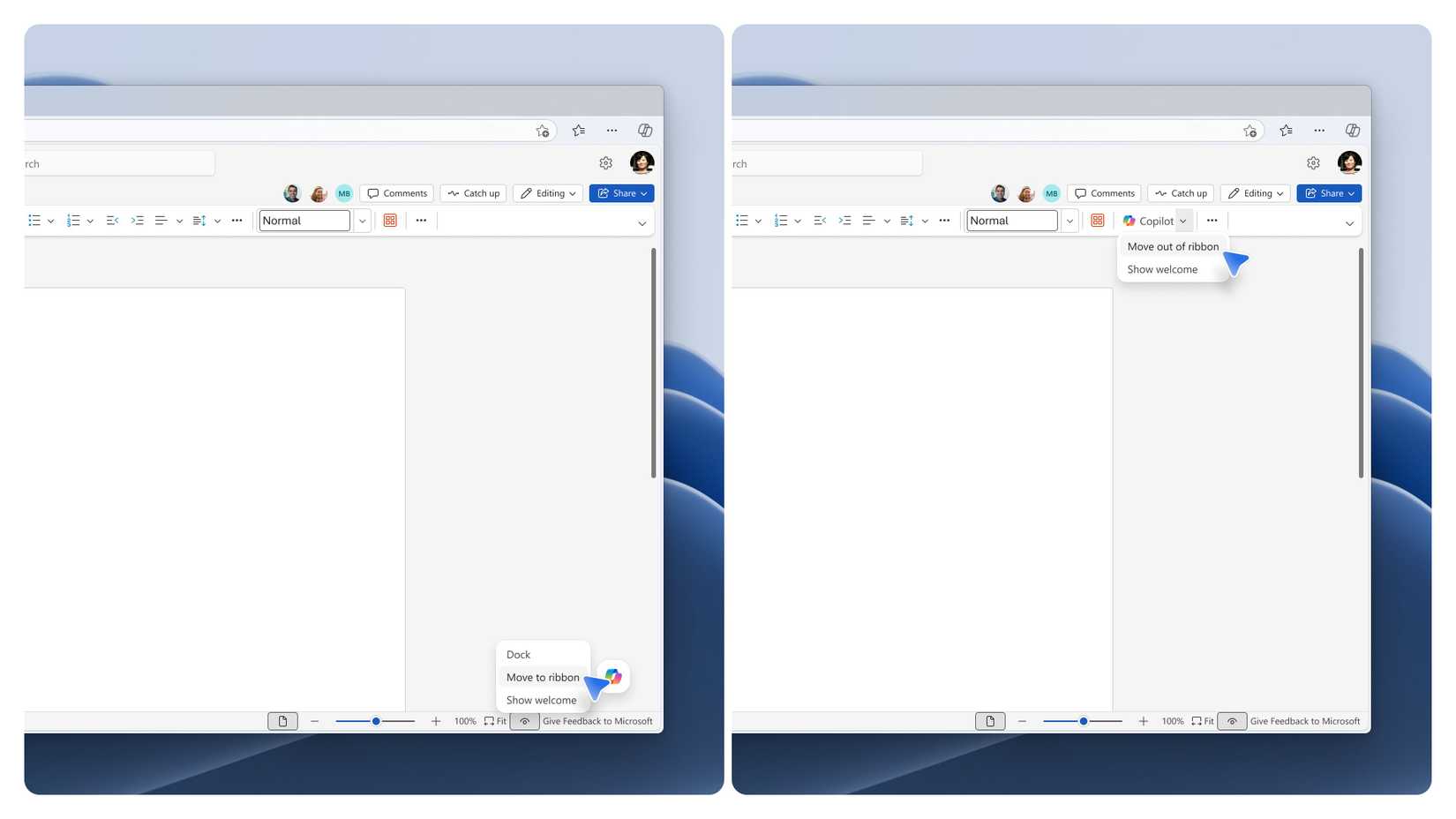
The first change allows you to right-click the floating Copilot button and click “Move to ribbon.” The button will vanish, and Copilot will instead reside in the bar above your document, out of the way of your work. The second change affects how Copilot docks to the side. Previously, it would stay docked unless you interacted with Copilot, at which point it would begin floating again. Now, it’ll stick to the side and stay there throughout the session.
It may not be the complete Copilot removal that some critics will want, but it is a deliberate move toward making Copilot a tool rather than the main attraction. Having Copilot front-and-center for those who want it, and tucked away for those who don’t, sounds like the perfect middle ground to me.
Here
“`

