



My Pixel 10 Pro gets hot sometimes — like really hot.
Whether I’m playing newer emulated retro games, connected to Android Auto, or just watching videos, I’m often surprised at how warm Google’s flagship phone becomes (though, to be fair, my iPhone 17 Pro gets just as hot sometimes). While my Pixel frequently becoming warm isn’t ideal from a comfort perspective, it’s also bad for the phone’s battery and accelerates its aging, which can degrade the cell’s internal components.
With that in mind, if you want your Pixel to still offer decent battery life years from now, keeping it at least somewhat cool is essential.
Adaptive Charging keeps my Pixel cool and extends its battery health
The feature uses AI to learn how you charge your phone
There are a few ways you can make this happen. First, disabling fast charging to avoid overheating is a solid idea (several phone manufacturers allow you to do this, including Samsung), but if you’re like me, and you’re a Pixel 10 user, there’s no clear option to turn off fast charging entirely. Instead, you’ll need to settle for turning on Adaptive Charging, which charges your phone to 80% and then charges the remaining 20% closer to when you typically unplug it.
For example, if you charge your phone overnight, the final 20% won’t charge until closer to when you typically wake up. It sounds a bit like magic, but it works quite well in my experience. The idea is that this reduces the time your battery spends at a high voltage, a key contributor to lithium-ion battery degradation. At the same time, this also keeps your phone’s battery nice and cool. To turn this feature on, head to Settings > Battery > Battery Health > Charging Optimization > Adaptive Charging.
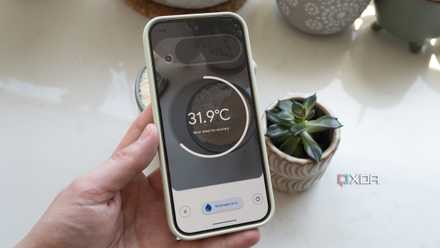
This often-overlooked Pixel sensor is way more useful than I expected
Google has included a temperature sensor in every Pro Pixel device since the Pixel 8 Pro.
Adaptive Battery limits your Pixel’s performance and keeps it frosty
It can sometimes cause issues, but it’s rare
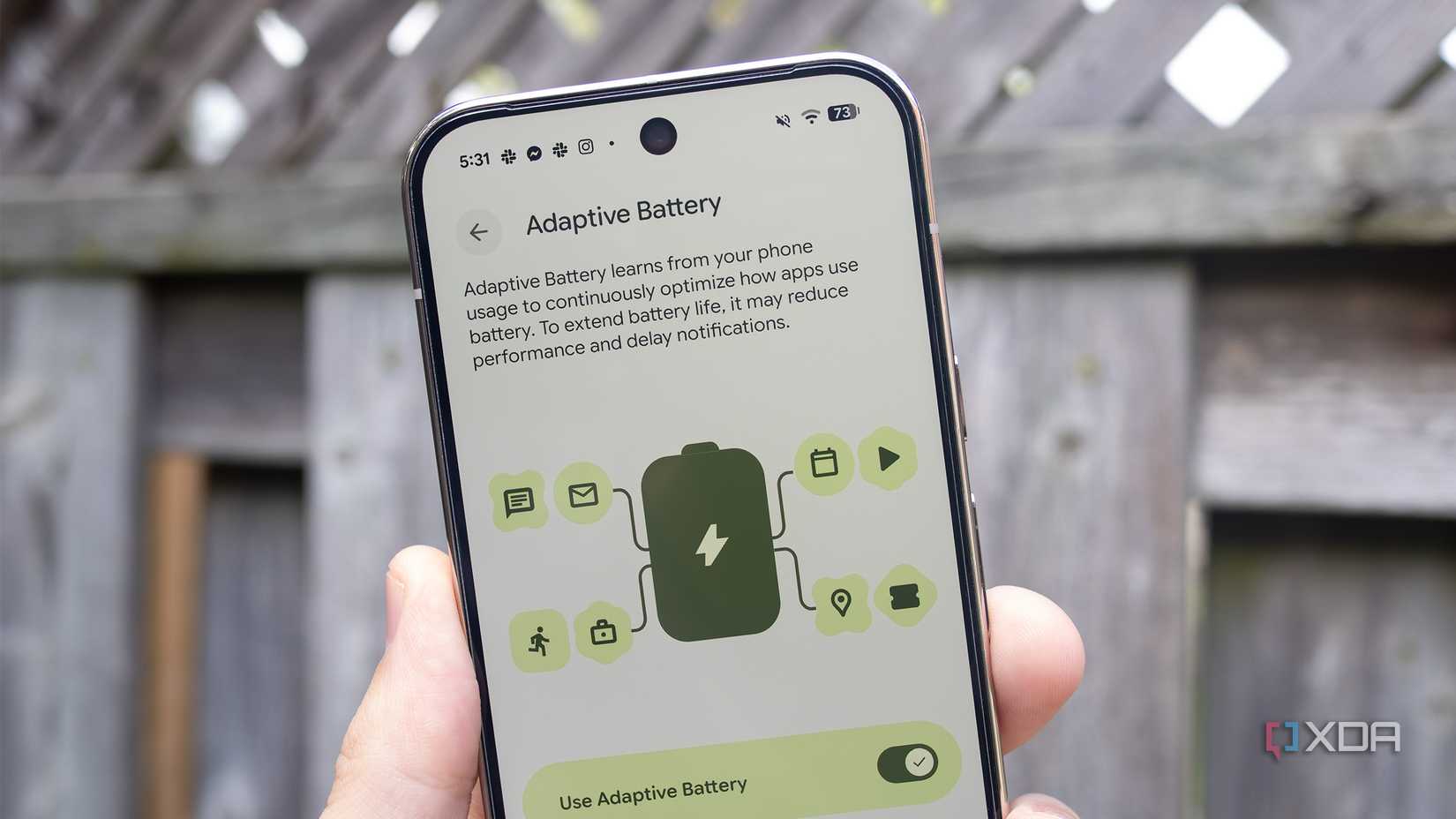
Another option is to enable the AI-powered feature Adaptive Battery. This setting monitors your phone usage to continuously optimizes how apps utilize its battery, limiting your smartphone’s overall performance to save battery and keep your phone chilled-out and not constantly under a heavy load. In my experience, the Pixel 10 Pro does a pretty good job at figuring out which apps need extra power, but it doesn’t always get it right, and in a few instances, I’ve experienced lag and the entire phone locking up. To find the option, go to Settings > Battery > Battery Saver > Adaptive Battery, then select On.
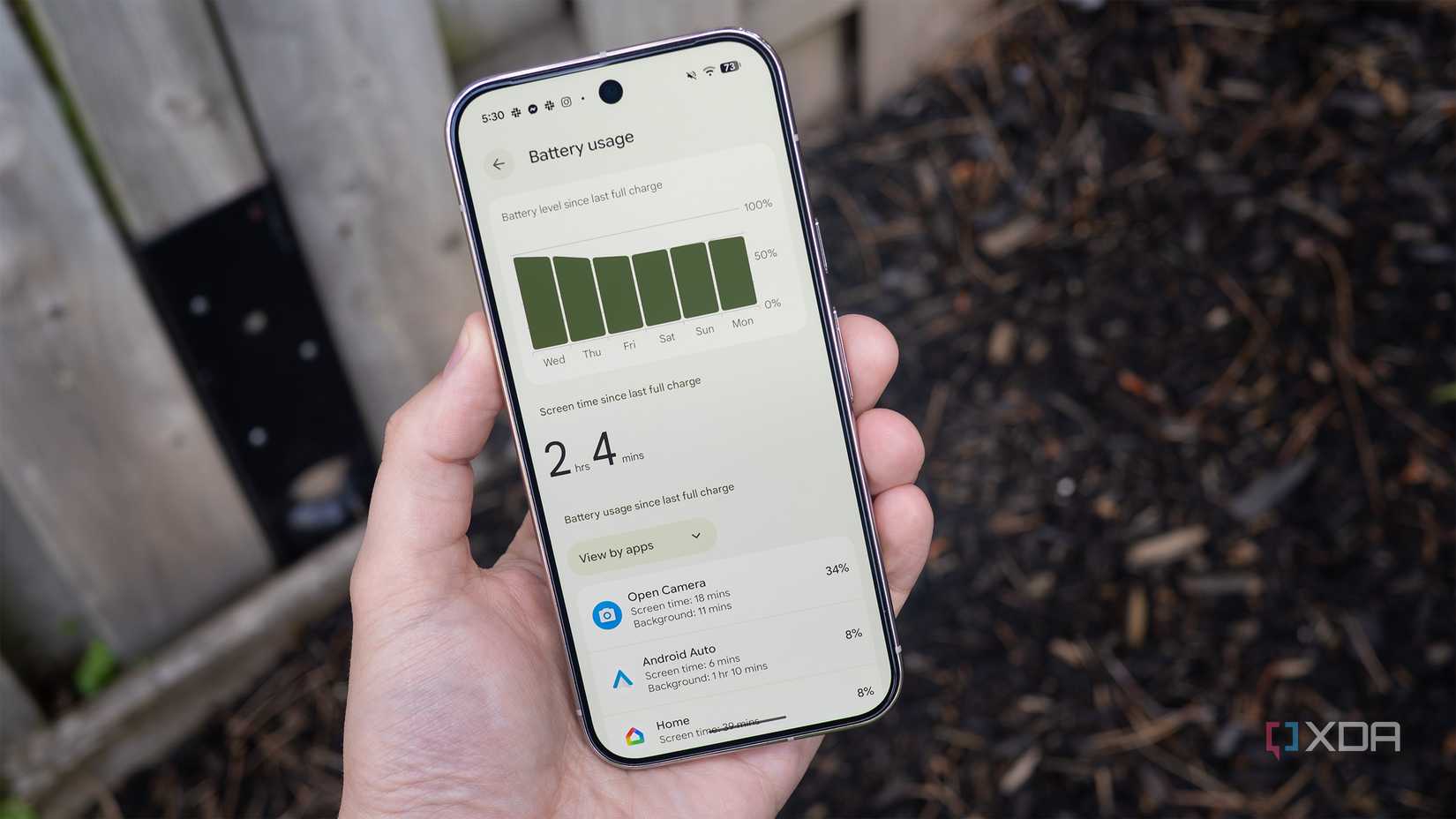
With all of this in mind, in some cases it can make sense to take matters into your own hands if certain apps are draining a lot of battery and causing your Pixel to heat up. To do this, you’ll need to check your phone’s Battery Usage report. To find the chart, go to Settings > Battery > Battery Usage. Now, take a look at what apps are using the most battery life on your device, and do your best to limit their use.
In my case, Open Camera, an open-source alternative to the Pixel camera app that I covered recently, is the biggest battery drain, but that’s about it. Next up are Android Auto and Google Home, two apps I use all the time and that I can’t really cut back on. For most people, manually limiting the usage of specific apps really isn’t that realistic of an option.
As a last resort, try turning off Allow Background Usage
This likely isn’t a great idea for most apps
If you want to take things a step further, you can toggle off Allow Background Usage to turn off real-time updates and save battery life. You can find this setting under Settings > Battery > Battery Usage, then tap the app that uses the most battery. You’ll then see Allow Background Usage at the bottom. I don’t use this feature because the trade-off isn’t worth it for me, but if there’s a game you frequently play or a social media platform that’s draining a lot of battery, it might be worth toggling it on to see if it keeps your Pixel running a bit cooler.
Even if you change these settings, your Pixel will still probably get hot
It’s also worth keeping in mind that even when you do all of these things, it’s likely that your Pixel will still get hot sometimes — it’s just sort of inevitable when you actually use your smartphone. Additionally, even with changes to all of these settings, you’ll likely only extend your battery’s life and, in turn, its health by a few percentage points over several years. Still, if you’re looking for simple ways to keep your phone a bit cooler, give the above settings a try.

4 simple ways I keep Android Auto from overheating my phone
If you’re phone is getting hot when you’re running Google’s in-car infotainment system, there are a few things you can do to keep it cool.
Source: Here
“`

