



I have been using an Amazon Fire TV Stick for the last four to five years, and it’s largely been a seamless experience so far. The stick still works well, and I haven’t encountered any major issues. Part of the credit goes to the manufacturer, but over the years, I have made several changes to my Fire TV Stick that have improved its performance and streaming experience.
I agree, the Fire TV Stick works out of the box. You plug it in, and it instantly transforms your not-so-smart TV into one that can stream content from apps like Netflix and Prime Video. Though there are many other things you can do with Fire TV, that’s what I use it for. Still, there are some simple changes that can instantly upgrade the streaming experience altogether.
I’m not talking about advanced configurations, but things that benefit regular people, changes that make your Fire TV truly yours, and customizations that make everything feel more accessible.
Turning off tracking, data monitoring, and autoplay
Less background activity improves streaming
While your Fire TV Stick can handle a decent number of apps, performance eventually takes a hit. It’s not a powerful device designed to run resource-intensive tasks and programs. A Fire TV Stick features basic hardware, and freeing up memory and CPU will likely speed it up. That’s why I started with background tasks that I didn’t really benefit from, but were instead forced by Amazon. This included Data Usage Monitoring and all unnecessary tracking.
To disable Data Usage Monitoring, head to your Fire TV’s Settings > Preferences > Data Usage Monitoring > Off. As for active tracking, you can turn it off under Privacy settings. Once there, disable Device Data Usage, Collect App Usage Data, and Interest-based Ads. The options are all pretty self-explanatory, so I wouldn’t get into what each does on your Fire TV, but disabling them does free up system resources.
Now it’s time to disable autoplay for content on Fire TV’s home screen. This not only provides a performance boost, but I am also no longer greeted by loud videos on my Fire TV. To disable autoplay, go to “Preferences” in your Fire TV’s Settings, and set both Allow Video Autoplay and Allow Audio Autoplay to Off.
Switching from Always HDR to Adaptive
Content now appears the way it’s supposed to
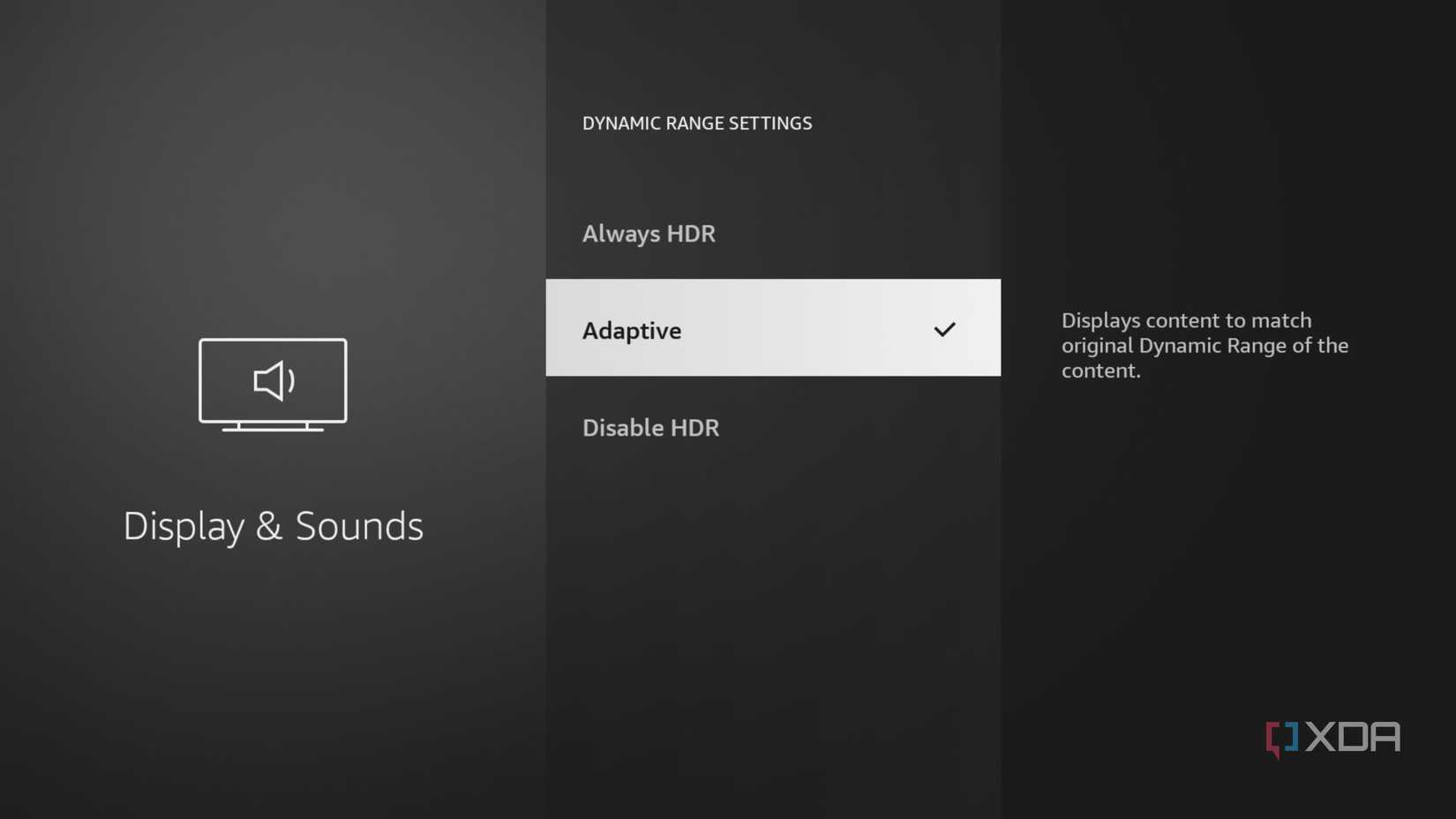
Back when I got the Fire TV, I was under the impression that setting Dynamic Range to Always HDR was the best approach and would improve streaming quality and make everything look more vibrant. I had that set for a few months when I noticed that some content looked washed out or brighter than it should be. That’s when I realized what the problem was.
Not every piece of content is designed for HDR, and when your Fire TV forces HDR on content mastered in SDR, the effects are generally noticeable. And switching to “Adaptive” fixes things in no time. When Dynamic Range is set to Adaptive, HDR content plays in HDR quality while SDR content remains in SDR, i.e., the way the creator intended. To make the changes, open Fire TV Settings > Display & Sounds > Dynamic Range Settings > Adaptive.
Replacing the Fire TV remote with my phone
Typing is much easier now
There are things I love about modern tech and things I hate about it. Over the past few years, manufacturers have largely ditched the number buttons on remotes. Neither my Fire TV Stick remote nor my smart TV remote includes number buttons. As a result, we are forced to rely on the on-screen keyboard, and it’s frankly both time-consuming and frustrating, especially when you have to type longer email addresses or passwords, or even search for shows. That’s why I switched to the Fire TV mobile app, which turned my phone into a remote.
The setup was seamless and didn’t take more than a few minutes. I now had a functional keyboard for searching, which to me was the best part. Apart from that, it had all the controls a typical remote has, and much more. I could also use my voice for searches instead of typing. Honestly, I haven’t had a chance to explore all the benefits the Fire TV mobile app offers over the Fire TV remote, but it has helped me get rid of some of the biggest frustrations.

Customize the home screen
All my favorite apps are easily accessible
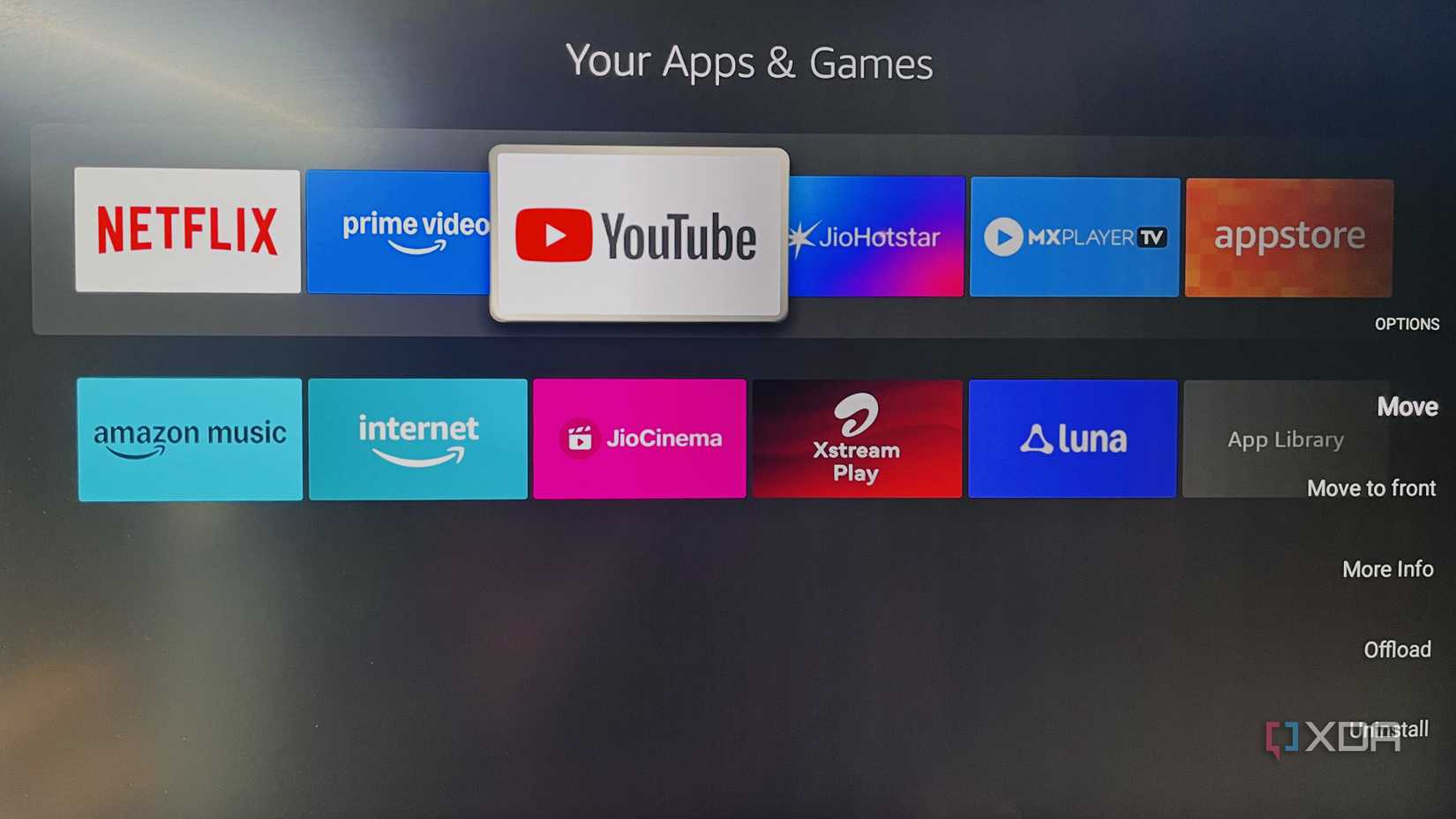
Another thing that has improved my Fire TV streaming experience is customizing the home screen. It won’t make your Fire TV faster, but it improves accessibility. I agree, the Fire TV’s default layout isn’t bad, but some of my favorites were not in the top row, and it took a few extra seconds to launch them.
So, I spent a few minutes reorganizing the home screen and moved all my favorite apps towards the front, where they were easily accessible. This may seem like a small change, but there’s only so much you can do to improve performance. Beyond that, you have to focus on other parts of the streaming experience, and for me, accessibility came next.
Sometimes, simple tweaks are all it takes
If you have a Fire TV Stick, it’s worth customizing some settings to improve your streaming experience. Believe me, it’s not too complicated. All these simple changes (and some more if you have the time) will take less than a few minutes, but they will instantly make your Fire TV feel faster, cleaner, and easier to use. You don’t even have to rely on any tutorial or guide. All you need is curiosity and a few minutes. And if things don’t work, you can always revert to default settings.
For more insights and detailed steps to enhance your Fire TV Stick experience, check out the original article Here.
“`

