


Fire TV Sticks are undoubtedly a great streaming device for average home users. I have had one for years, and it has turned my dumb TV into something much more capable. I usually carry it with me on vacations, so whenever I am in a hotel or Airbnb, my entire watchlist is right there. Ever since I got a travel router, I don’t even have to worry about internet connectivity.
At the same time, I have realized that there’s a major drawback to using one: Fire TV Sticks can get slow over time. It could be the case with every streaming device, but since I have yet to try another, I will focus on Fire TV Sticks. The best part is that speeding up a slow Fire TV Stick isn’t that challenging. A few quick changes usually do the trick for everyone. Some of these are one-time tweaks, while other things need to be done periodically.
4
Close background apps
Apps consume memory even when you are not using them
Frankly, Fire TV Sticks are pretty affordable, but that also means they don’t have powerful hardware or much system memory. The same goes for many smart TVs. So, as things pile up in the background, resource consumption keeps on increasing, leaving little for active apps. That’s why I make it a point to stop background apps.
To do that, open Settings, go into Applications, then Manage Installed Applications, pick the app you believe is running in the background, select Force Stop, and confirm the change. Repeat the same steps with other apps that you won’t be using for a while.
If these background apps were consuming significant resources on your Fire TV Stick, you should see a noticeable improvement in performance. It works for me every time. As a matter of fact, this also helps when apps feel glitchy or take too long to load.
Related
My Fire TV Stick stopped feeling sluggish after I changed this setting
It’s something you should do periodically for the best performance
3
Clear the Fire TV Stick cache
A simple yet effective fix for slowdowns
If there’s one thing you could do regularly, I would suggest it be clearing the Fire TV Stick cache. This is really simple, takes less than a minute, and can work wonders if there’s too much cache stored. For those of you who don’t know, a cache is temporary data stored by apps, ideally intended to improve performance and minimize load times. But when too many apps start creating cache, performance takes a hit, especially if your Fire TV Stick is running low on storage.
Clearing the cache on your Fire TV Stick is a simple, one-click solution. Open Settings, go to Applications, select Clear all Application Caches, and confirm the changes. That’s it, you don’t need to individually clear the cache for each app. However, if you want, you can do that too.
I suggest clearing the cache every couple of weeks. That’s because apps rebuild it over time. Also, your Fire TV Stick automatically clears the cache for apps you haven’t used in a month, but it only happens when the stick is low on storage. So it’s better to do it manually.
Related
6 useful Fire TV Stick apps that really improve my streaming experience
Stop scrolling, start streaming.
2
Turn off features you don’t need
This includes tracking and autoplay
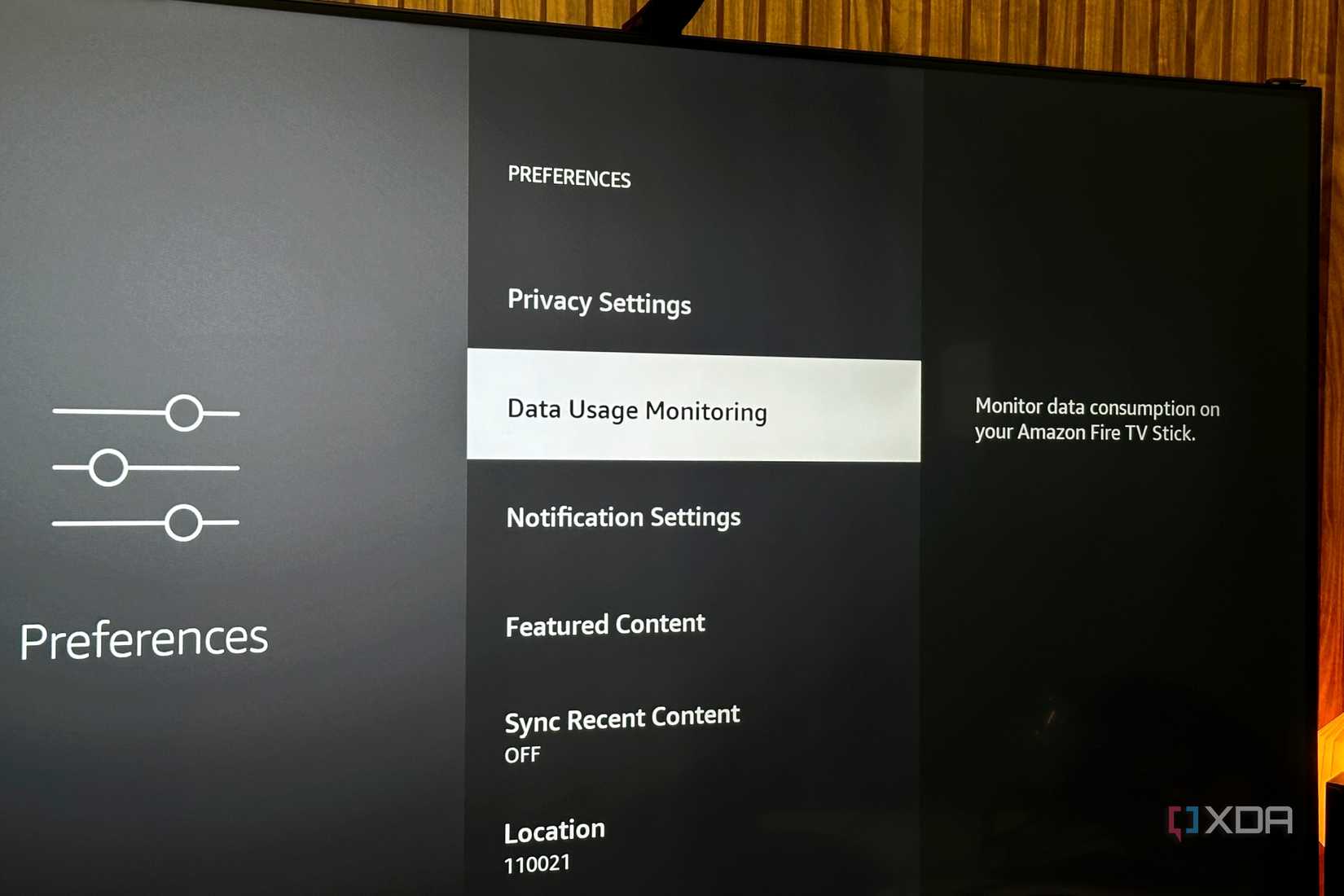
Like any other device, your Fire TV Stick also has a bunch of features that consume resources in the background. Many of these are overlooked, yet helpful features, while some do not necessarily benefit you. The latter includes data monitoring, tracking, and autoplay, among others. And disabling them can give your Fire TV Stick a major speed boost. Honestly, it’s not just performance; turning off a few actually improved the overall Fire TV Stick experience.
To disable data monitoring, go to Preferences under Settings, then into Data Usage Monitoring, and turn it off. To stop content on the home screen from autoplaying, head to Featured Content under Preferences, and turn off both Allow Video Autoplay and Allow Audio Autoplay.
For tracking, navigate to Privacy Settings under Preferences, and disable Device Usage Data, Collect App and Over-the-Air Usage Data, and Interest-Based Ads. I also recommend turning off tracking and data monitoring for privacy reasons.
1
Uninstall apps you no longer need
Fewer apps translate into better performance

Another effective way to speed up any Fire TV Stick is to uninstall apps. This does two things: it frees up storage and minimizes background activity, both of which directly improve performance. I am not saying you should uninstall every app, but any you haven’t used in the last few months should make the list. The idea is simple: if you haven’t opened an app in a while, it’s unlikely that you will do so in the near future. And if you ever actually need it, you can always reinstall the app.
To uninstall an app, open Settings on your Fire TV Stick, go to Applications, choose Manage Installed Applications, select the app you want to remove, then select Uninstall and confirm. Similarly, uninstall other apps you no longer need.
Related
4 useful things I did with my old Fire TV Stick instead of throwing it away
There’s some cool ways to repurpose a Fire TV Stick without throwing it out.
A Fire TV Stick can last for years when handled right
Even though they are affordable, you shouldn’t upgrade your Fire TV Stick every few years, especially if it’s only because of performance issues. In most cases, smarter use is all you need to keep the Fire TV Stick’s speed like new for years.
That said, I would also recommend checking for overheating, because higher temperatures can definitely impact performance. And it’s not always the Fire TV Stick at fault. Sometimes, heat from other sources, like your TV, can trigger the problem, and an HDMI extender can help. As long as you have that covered and pay close attention to the software side, your Fire TV Stick should run fine. I have been using mine for over four years, and it’s still as good as new.
Here
“`
