


When I first switched over to Windows 11, I realized how cluttered Microsoft’s newest OS had become. Between pre-installed AI that I didn’t want to use, widgets that promoted clickbait, and prompts to try Microsoft services, I felt inundated with unnecessary content that pulled my focus away from being productive.
That’s why I spent some time researching and changing settings so that I could wrestle back a cleaner experience. And while it’s not as lean as I would like it to be, changing these defaults made my setup much more manageable.
The biggest source of visual bloat
There are two main places that widgets can appear on Windows 11 — on your lock screen and your taskbar. However, I make sure to disable both so that I don’t receive information I’m not interested in.
While widgets can undoubtedly be helpful, Windows 11’s customization options leave a lot to be desired. For example, you can’t enable the weather widget on your lock screen in isolation. It comes with other widgets like news and financial markets. Meanwhile, the widgets board that appears when you click on your taskbar widget is also filled with irrelevant content.
Rather than deal with the clutter, I disable widgets completely on both my lock screen and taskbar. To disable taskbar widgets, you can head to Settings > Personalization > Taskbar and disable the Widgets toggle.
To disable lock screen widgets, go to Settings > Personalization > Lock screen and make sure that the option under Lock screen status is set to None.
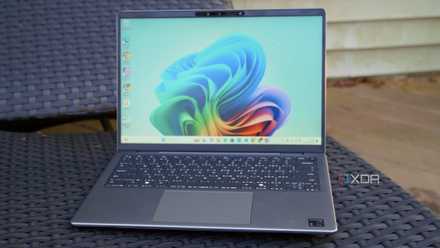
Nothing but a distraction for me
The Start menu is another place that can easily become chaotic with Microsoft recommendations. To avoid this, I make sure to only show my most used apps, and then the rest of my apps in alphabetical order. If you don’t turn off recommendations, Windows may recommend apps based on usage, or show you tips about your device. I’ve never found these recommendations helpful — only distracting.
To disable recommendations, go to Settings > Personalization > Start and turn off the toggle for Show recommendations for tips, shortcuts, new apps, and more. To keep my Start menu clutter-free, I also disable Show recently added apps and Show recommended files in Start, recent files in File Explorer, and items in Jump Lists.
If you don’t like the default way the Start menu displays your apps, you can also select a different View. The default is set to Category, which groups your apps together in blocks. I prefer to use List or Grid as I find this makes my Start menu much more manageable.
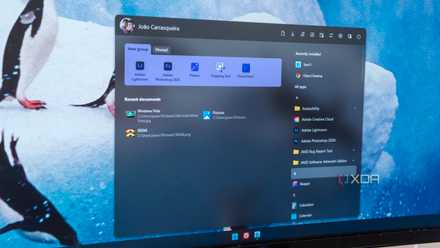
Removing pinned apps
No more shortcuts to apps I never use
While this isn’t an individual setting, it does involve undoing something Windows 11 does by default for certain apps. I found that my Start menu was cluttered with pinned items I hadn’t added, including shortcuts for apps that I had never used.
To get rid of these apps, I was able to right-click on the app and select Remove from Start. For folders, I needed to first click on the folder, drag the apps out of the folder into the pinned section, and then right-click on them to remove them. Eventually, I was able to get rid of the pinned section entirely.
I may pin an app again in future, but right now the way I access my most-used apps is with taskbar shortcuts. Despite me using my PC daily, there aren’t all that many apps I need shortcuts to. In fact, it’s probably time I cleaned up my taskbar and desktop to eliminate additional clutter.
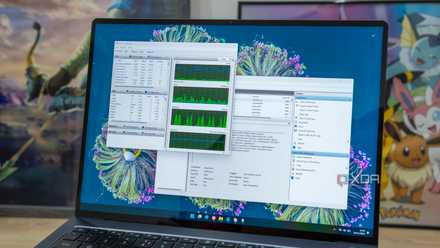
Search highlights
Disabling this made my search bar more useful
Search highlights have always felt like a way for Microsoft to push its own content and services to users on Windows 11. These highlights include trending searches, suggested games, and trivia. I don’t use Bing as a search engine and I don’t really use Microsoft’s AI features either. So this entire section is just another bit of clutter on Windows 11.
Rather than being a personalization setting, this option is buried in a different menu. To disable search highlights, I went to Settings > Privacy & security > Search and turned off the toggle for Show search highlights.
This immediately made the search menu interface cleaner and much more useful. Instead of irrelevant content, the menu now includes my top apps and search shortcuts for common queries like display settings.
This reminds me that there are sometimes genuinely useful settings lying beneath the visual bloat, but unfortunately Windows 11 can make it difficult for users to find. In my opinion, this should be the default search menu interface, not the bloated sidebar used to promote Microsoft platforms.
Changing these settings makes Windows 11 less chaotic
We live in a time when many of us feel constantly advertised to or pushed to use certain services. AI sneaks into your apps and browsers, your PC and smartphone OS are filled with bloatware, and every major tech company wants you to use their preferred services and content providers.
In an effort to end this constant push for my attention, I’ve been working to de-bloat my devices and make software experiences less chaotic and cluttered. If you also feel overwhelmed, it might be time to try a change of settings on your Windows device too.
For more detailed guidance on reducing bloat on Windows 11, visit the source here.
“`
