


Windows 11 is a dominant force in the operating system landscape, serving as the backbone for countless corporate computing systems and remaining the preferred choice for many users when building or purchasing new PCs. However, its reputation is marred by a growing number of features that consume significant system resources without offering tangible benefits to all users. While some features are undoubtedly useful for specific scenarios, they are often enabled by default, leaving the average user unaware of their presence and resource consumption. This article delves into several background processes in Windows 11 that most users can safely disable to improve performance and privacy.
Windows Health and Optimized Experiences
It’s mostly useful for just laptops, so if you’re on a desktop, there’s no need for it
Windows Health and Optimized Experiences, appearing as WHESVC in the Task Manager, is a service introduced by Microsoft in 2025. Its primary function is to monitor system metrics such as CPU load, thermals, power profile, battery life, and screen brightness, recording performance traces when the system behaves sluggishly. Although some critics initially labeled it as spyware, Microsoft clarified that the data collected is stored locally and only shared with user consent. While beneficial for laptops, this service offers no significant advantage for desktop users. Disabling it is straightforward: open Services, locate “Windows Health and Optimized Experiences,” and set its startup type to Disabled.
Connected User Experiences and Telemetry
Turn it off for a little more privacy
This service, hidden under the name Service Host: UtcSvc in the Task Manager, is better known as DiagTrack. It collects diagnostic and usage data, such as app usage, driver reliability, and performance metrics, sending it to Microsoft based on user settings. While the resource usage is minimal, privacy-conscious users might prefer disabling it. To do so, navigate to Services, find “Connected User Experiences and Telemetry,” click Stop, and set the Startup type to Disabled. If the option is unavailable, use an elevated command prompt with the following commands:
sc stop DiagTrack

sc config DiagTrack start=disabled
SysMain
A service from a bygone era, for a bygone era
SysMain, formerly Superfetch, dates back to Windows Vista. It aimed to improve app launch times by preloading frequently used apps into RAM. However, on modern systems with SSDs, its benefits are negligible. Despite this, it still runs, consuming resources. To disable SysMain, access Services, find “SysMain,” and disable it.
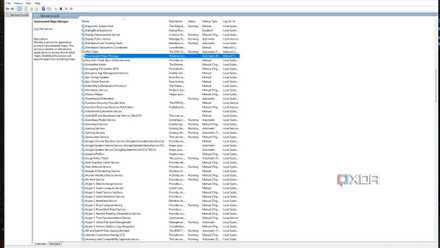
Downloaded Maps Manager
It maintains offline maps that you have never opened
Many users may not recognize “MapsBroker,” but it manages offline maps on Windows PCs. For most users connected to the internet, offline maps are unnecessary, making this service redundant. Security guidelines recommend disabling it to reduce security risks. To disable, go to Services and search for “Downloaded Maps Manager.”
Windows 11 needs a lot of trimming
While many background services in Windows 11 are harmless, they may not be beneficial for all users. Some are relics of past technology, while others address issues that most desktop users don’t face. Regularly auditing your machine can help reclaim system resources and reduce unnecessary bloat. For more insights, visit the source here.
“`
